SharePoint
  Confluence
  Case Studies
Enhanced Authentication for Accessing Model Information in Prolaborate
Introduction
From version 5.6, Prolaborate now offers enhanced security for accessing model information with the help of EA model security, ensuring secure and verified access to repositories.
With the new feature enabled, users should enter their EA model credentials or use Open ID to open the repository in Prolaborate to view the model information.
Prerequisites
- EA Authentication will work only in security enabled models.
- User should be an administrator to enable this option.
- Open ID login will appear only if they are configured for the model in EA.
How to enable EA Authentication?
EA Authentication can be enabled in Prolaborate in various ways as described below.
Enabling at repository level
EA Authentication can be enabled at a repository level where users part of this repository must enter their EA model credentials to open the repository and view model information in Prolaborate.
When adding or editing a repository, toggle the option Require EA Authentication under Model Security section to enable this feature.
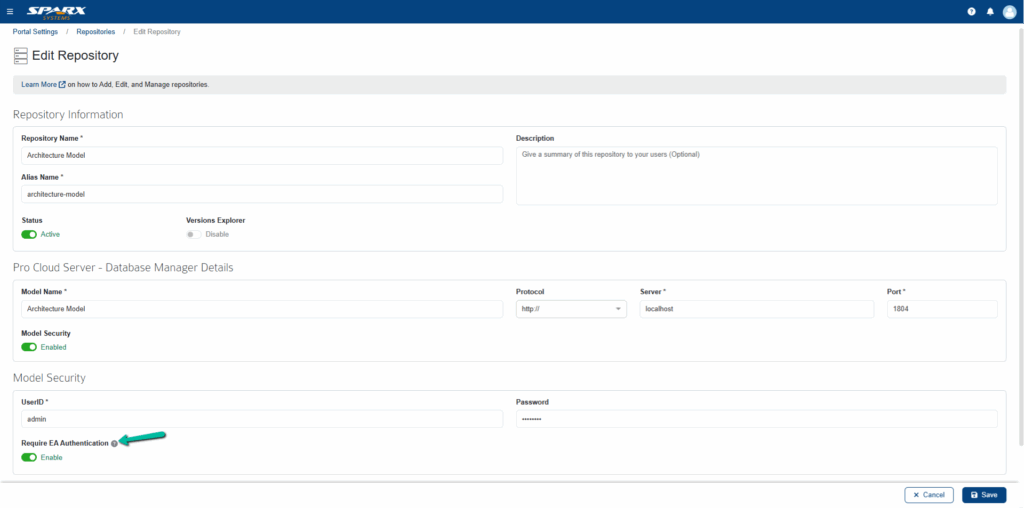
Click Save to save the changes once the option is enabled. You will be redirected to the repository listing page.
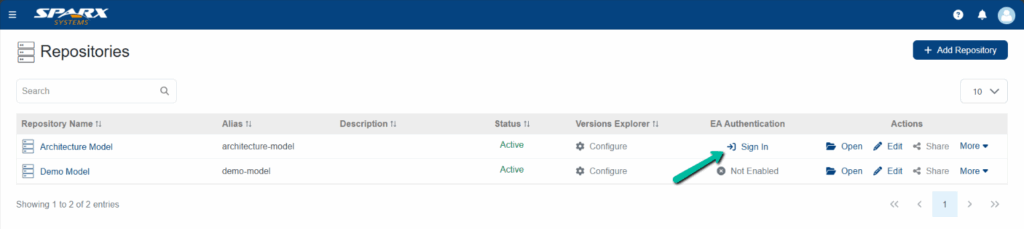
Under the column EA Authentication, it will display Sign In which indicates the EA Authentication is enabled for this repository. If not, it will display Not Enabled in the column.
Enabling at user group level
EA Authentication can be enabled at user group level where users part of this user group must enter their EA model credentials to open the repositories associated with this group and view model information in Prolaborate.
When adding or editing a user group at the application level, toggle the option Require EA Authentication section to enable this feature only for the members of this user group.
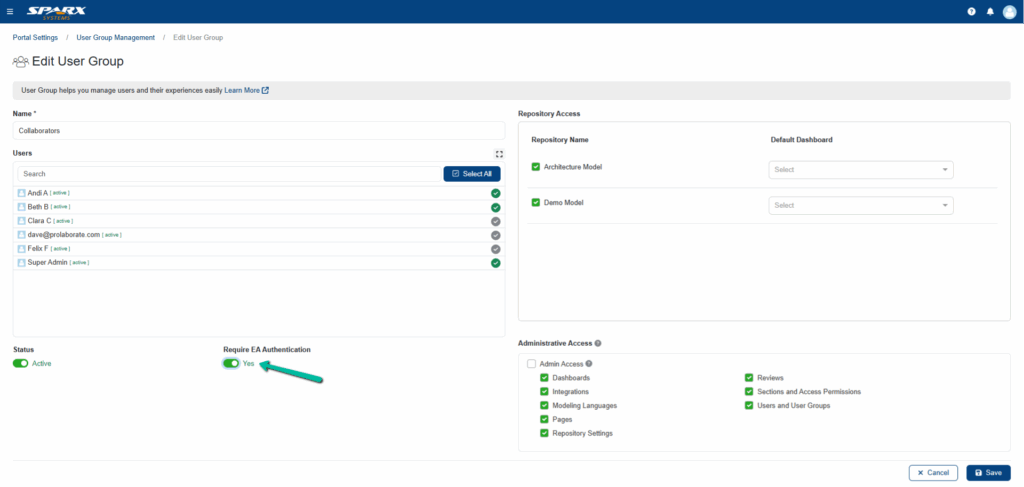
Click Save to save the changes once the option is enabled.
Enabling at users’ level
EA Authentication can be enabled at user level where enabled users must enter their EA model credentials to open the repositories associated with this group and view model information in Prolaborate.
When adding a new user or editing an existing user detail up at the application level, toggle the option Require EA Authentication section to enable this feature.
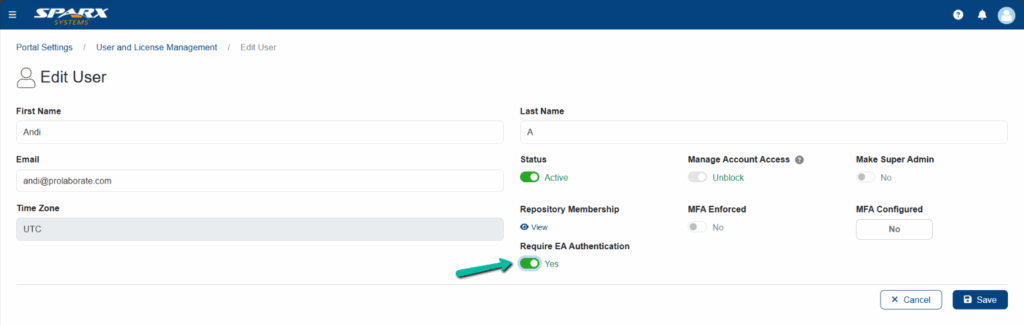
Click Save to save the changes once the option is enabled.
Viewing Model Information
When opening the repository in Prolaborate, a modal window opens if EA Authentication is enabled for the required repository or the logged in user.
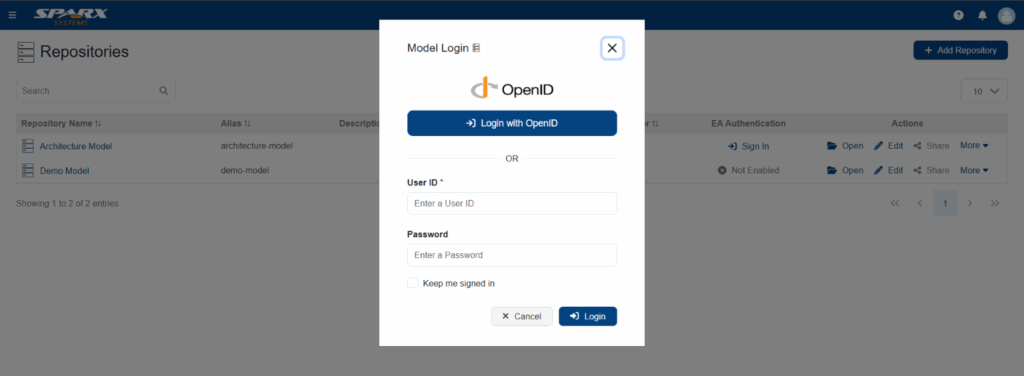
Enter the model credentials or use OpenID login to open the repository and view the model information.
Note:
- OpenID login option will be available in Prolaborate only if OpenID is enabled and configured for the model in Prolaborate.
How to use OpenID login in Prolaborate?
If you intend to use OpenID login, ensure that your OpenID server configuration includes a valid redirect/callback Prolaborate URL.
Example: http://localhost:81/RepositoryManagement/OpenId
The above redirect/callback URL must be configured in the respective identity provider (such as Azure Entra ID, Okta, etc.,) along with the EA callback URL (http://localhost:8888/openid/callback)
Note:
- Replace the protocol, domain and port number with your respective values in the above Prolaborate callback URL.