SharePoint
  Confluence
  Case Studies
View Audit Information
Introduction
This guide will help you on how to enable and view the audit information in Prolaborate.
Prerequisites
- Audit should be enabled in the Prolaborate Management application.
- Prolaborate version should be 5.6 and above to view the audit information in the application interface.
- User should be an admin to view the audit information in the application interface.
How to enable Audit?
Audit should be enabled in the Prolaborate Management application. It can be found at the location where Prolaborate is installed (C:Program Files ProlaborateProlaborateManagement)
Run the Prolaborate Management.exe as an administrator.
Navigate to the WebApp section under Manage Configuration. Scroll down and you can see the Enable Audit API under Application Settings. Tick the checkbox and click Save to update the changes.
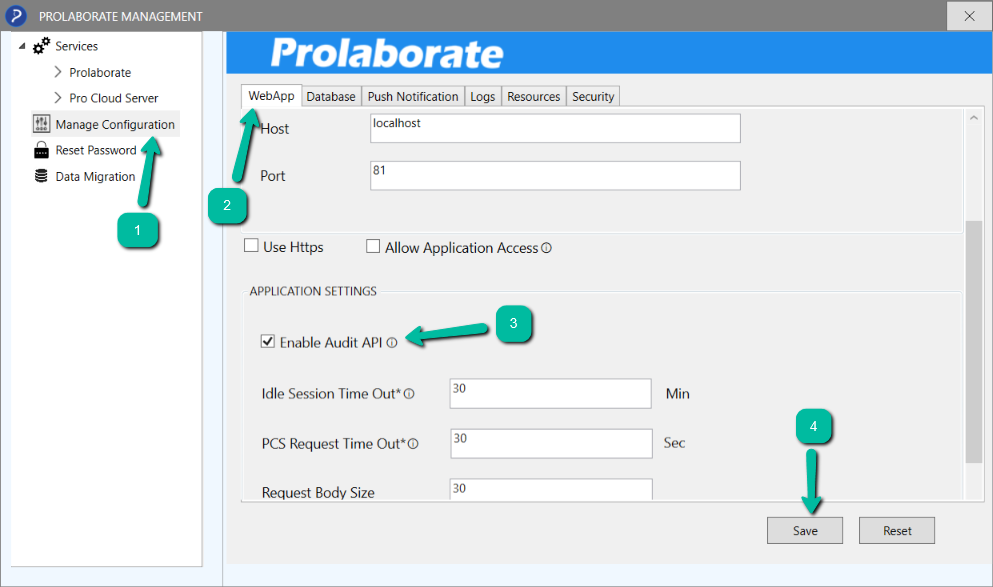
Once saved, restart all the Prolaborate Services to apply the changes.
View Audit Information in the application interface
Once enabled, all the events and information are captured and stored in the database. That information can be view in a readable format directly in the application interface by an administrator.
Click Menu > Monitor and Audit Console under Portal Settings.
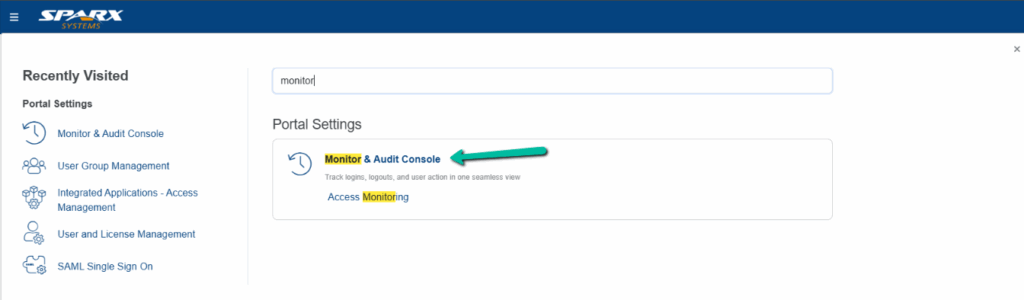
Navigate to the section Activity Auditing to view all the audit information.

| Field | Description |
|---|---|
| Date | Shows the date and time of the event last took place |
| Action | Denotes which API or what action was performed |
| Action Type | Denotes what type of action took place E.g. GET, PUT, POST, DELETE |
| Created By | Denotes who performed the action |
| Action Description | A short description about the action took place. Description is available only for selected actions. |
| Action Details | Open a modal window where it shows the endpoint and payload of the triggered action. |
Filter Audit Information
Admin can use the individual column filters to reduce and view the audit information.
Filter information for a specific period
The Date column contains a date range filter where admin can filter and view the information between a specific time period.

Filter information based on Action
The Action column allows you to filter information based on the modules where the action was performed such as dashboard, element, diagram, etc.

Filter information based on User
The Created By column allows you to filter information based on the users added to the application. It lists all the available users in the dropdown.

Filter information based on Action Type
The Action Type column allows you to filter information based on the type of action such as GET, POST, PUT, or DELETE.

Download Audit Information
Audit information can be downloaded as an excel report for offline analysis and archival.
Click the Download icon to initiate the download process.

Enter a suitable file in the modal window and click Download to initiate the process.

You will receive a notification once the file is processed successfully.
Click the notification or click the Downloaded Reports in the Monitor & Audit Console to navigate to the download center. To learn more about Download Center, click here.
Click Download to download the file.

Note:
- For cloud users, Audit information can be downloaded for the last 10 days by default. The retention period can be extended based on the tier size purchased. For more information, contact cloudsupport@prolaborate.com
Change Audit Retention Period
By default, the audit information of the last 120 days is stored in the database and is displayed in the interface. Entries before that are automatically cleared.
If you wish to reduce/extend the retention period, you can configure it by modifying the RetainAuditHistory parameter in the Prolaborate.json file.
Open the Prolaborate.json file from the installation folder (C:\Program Files\Prolaborate\Config).
Locate the parameter “RetainAuditHistory“: 120. Update the value (e.g., change 120 to the desired number of days) and save the file.

Once done, restart all the Prolaborate Services either from the task manager or from Prolaborate Management application.
Note:
- For cloud users. the retention period depends on the tier size purchased. For more information, contact cloudsupport@prolaborate.com