SharePoint
  Confluence
  Case Studies
Simplified Artifact Search
Introduction
Users can search for the artifacts in the model instead of the navigating through the complex package hierarchy to view the information. Users can search an artifact from the packages that he has to in Prolaborate.
This guide will help you understand on how to search for an artifact from a repository in Prolaborate.
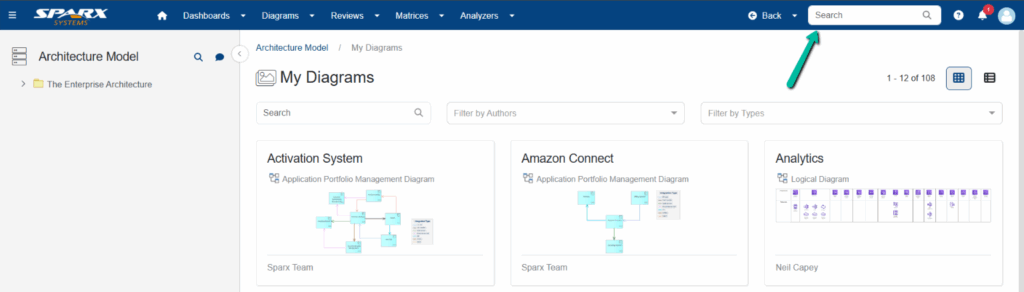
Open a repository and click the Search bar. Press Enter to open advanced search and find artifacts in a repository.
Search Artifacts from the entire model
In the search window, users can search for the artifacts by their name or alias from the entire model.
They can also choose a category (element, diagram, package) or select a required type or stereotype to filter the search and display the result.
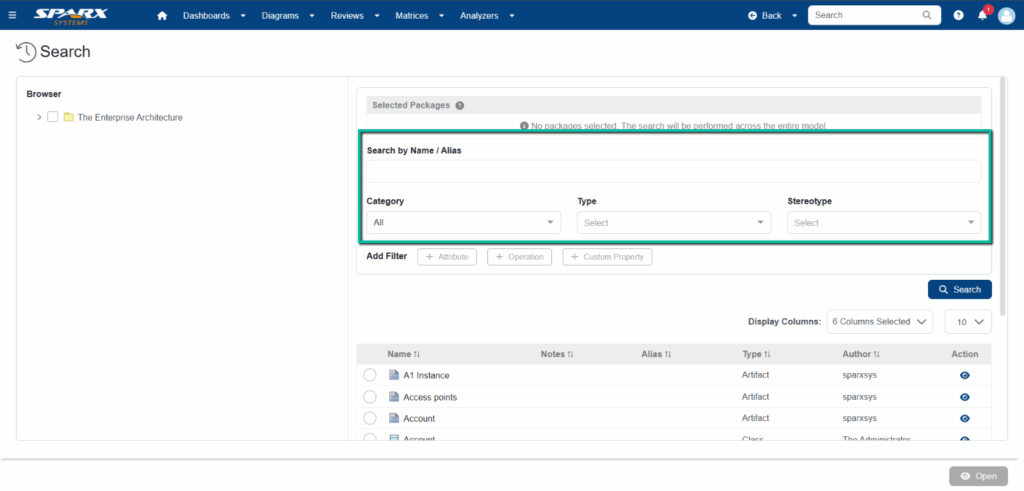
Click the Search button to search the artifacts.
Search Artifacts from the selected packages
From Prolaborate 5.6, users can select packages and find artifacts from them instead of searching from the entire model.
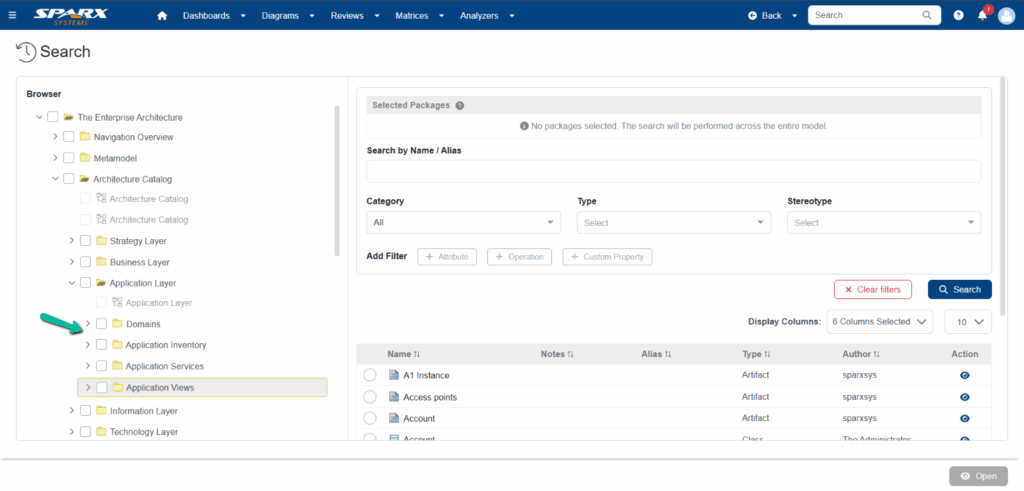
Select the packages from the browser on the left side.
The packages selected will be displayed under the selected packages section. The type and stereotype dropdown will list only the artifacts from the selected packages.
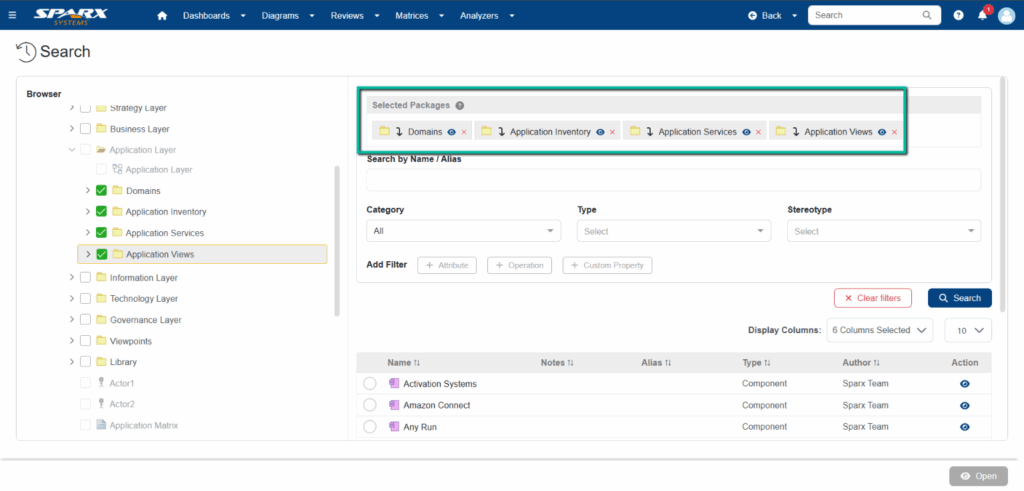
Click the Search button to search the artifacts.
Filtering using Attribute, Operation or Custom Property
From Prolaborate 5.6, users can further filter and search for artifacts using attribute, operation or custom property if required.
Once a category (element or package) is selected, the filtering options will be enabled.
Click on a filter condition to open a modal window.
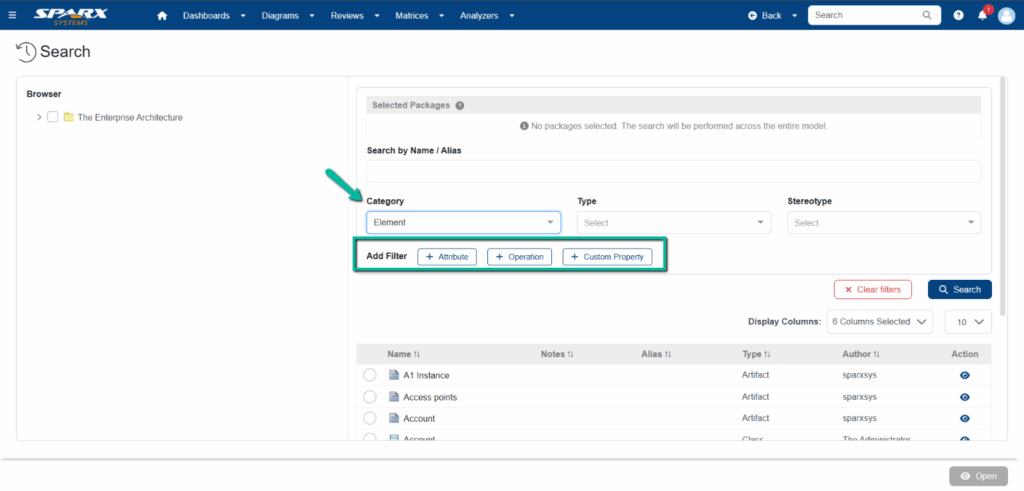
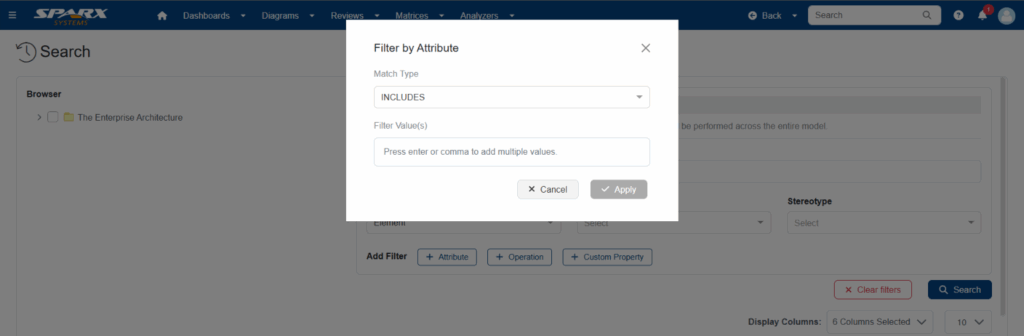
Filter by Attributes and Operations
For Attribute and Operation filter, users can enter the attribute or operation name and select the match type as Includes or Excludes. You can also enter multiple values by pressing enter or comma.
Once entered, click Apply to add the filter.
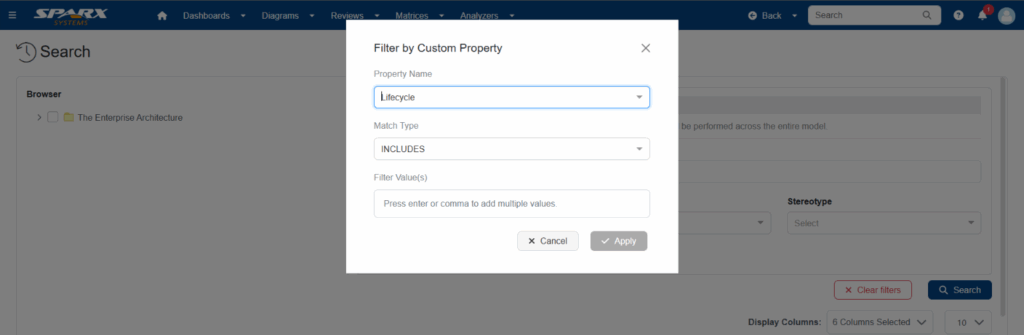
Filter by custom property or tagged values
In the filter by custom property window, it lists all the properties from the model. Users can select a property, select the match type and enter values.
Once entered, click Apply to add the filter.
The applied filter conditions will be displayed.
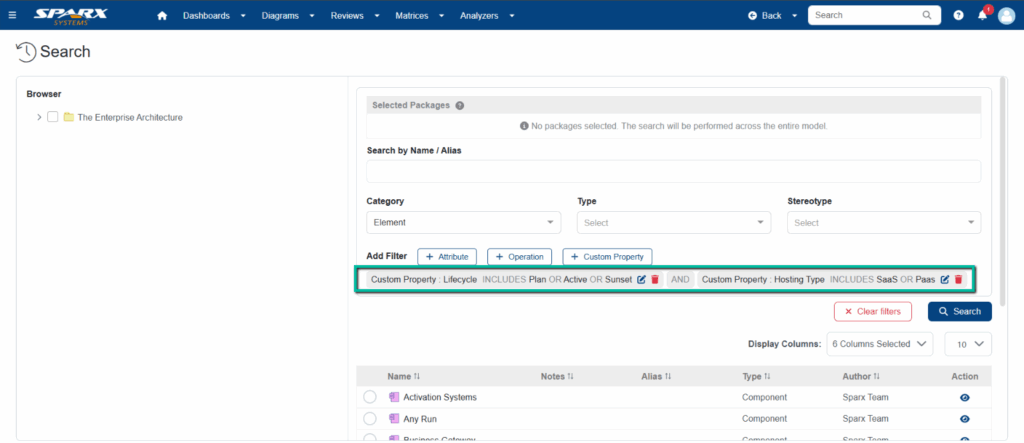
Click the Search button to search the artifacts.
Note:
- Filtering using attribute and operations is only possible if the category is set as element or package.
- Filtering using custom properties is only possible if the category is set as element.
- Attribute and Operation filter can be applied only once.
- A maximum of five filter conditions in combination all three filter types can be applied to search the artifacts.
Edit Filter Conditions
To edit an applied filter condition, click the Edit icon.
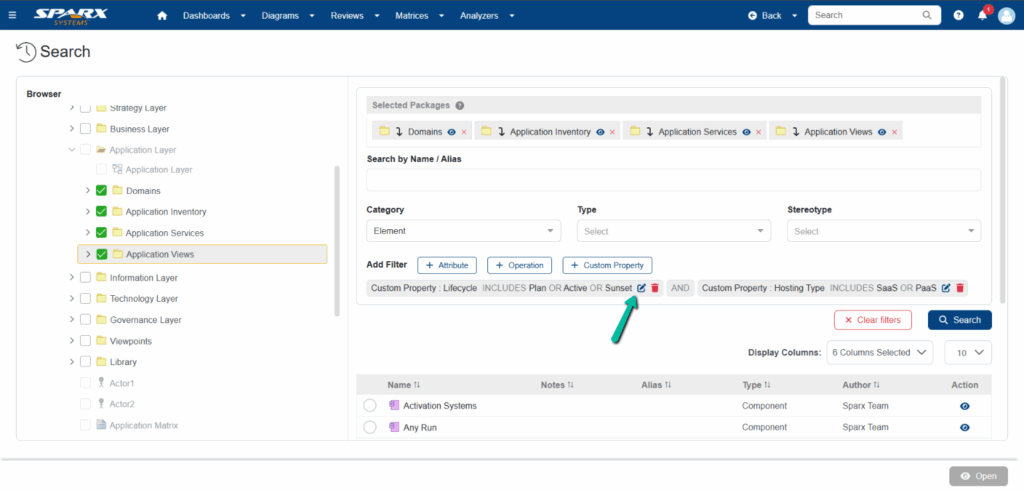
A modal window opens with the already configured conditions. Make the required changes, apply the filter and then click the Search button to search for artifacts.
Clear Filters
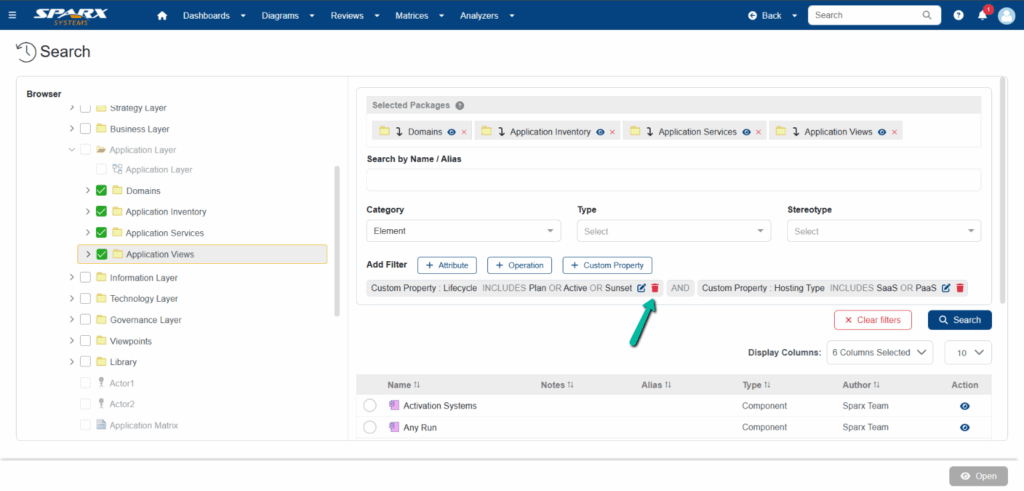
To clear an applied filter condition, click the delete icon. It will remove the applied filter condition.
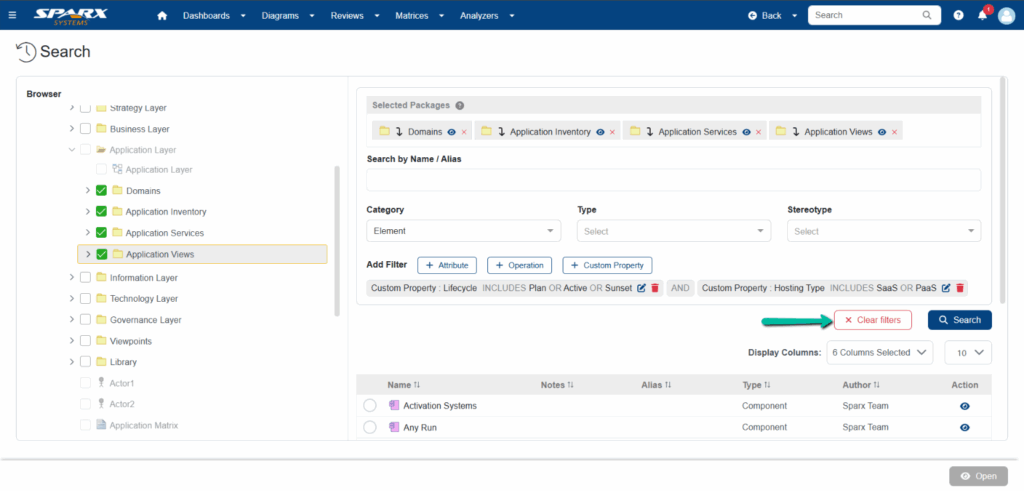
To clear the entire filter conditions with a single click, click the Clear Filters button.
My Recently Viewed Items
Recently Viewed items list the artifact, the user recently accessed in a repository in Prolaborate. To view the list, click the dropdown or the search bar which is located on the top right in the ribbon menu.
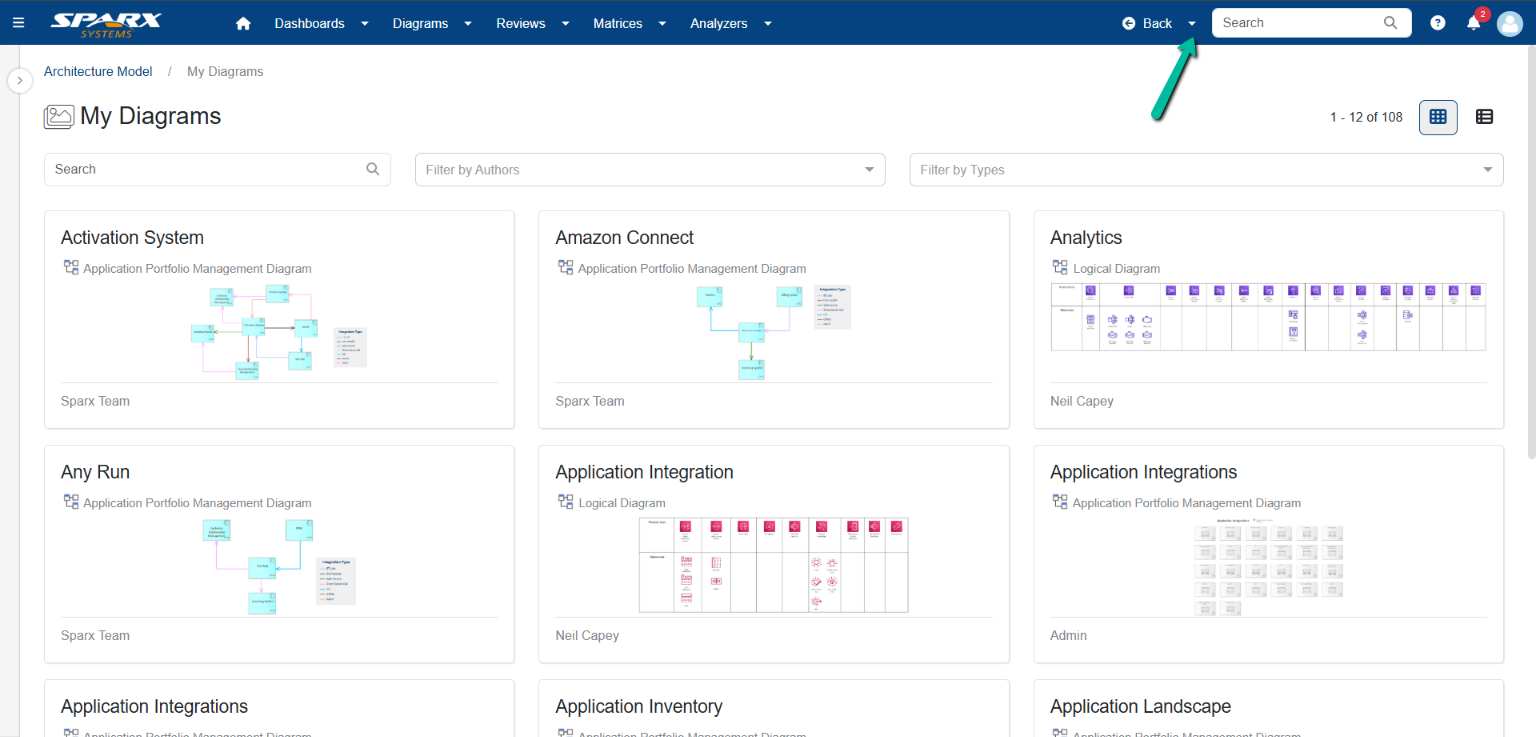
The last ten recently viewed artifacts will be listed.
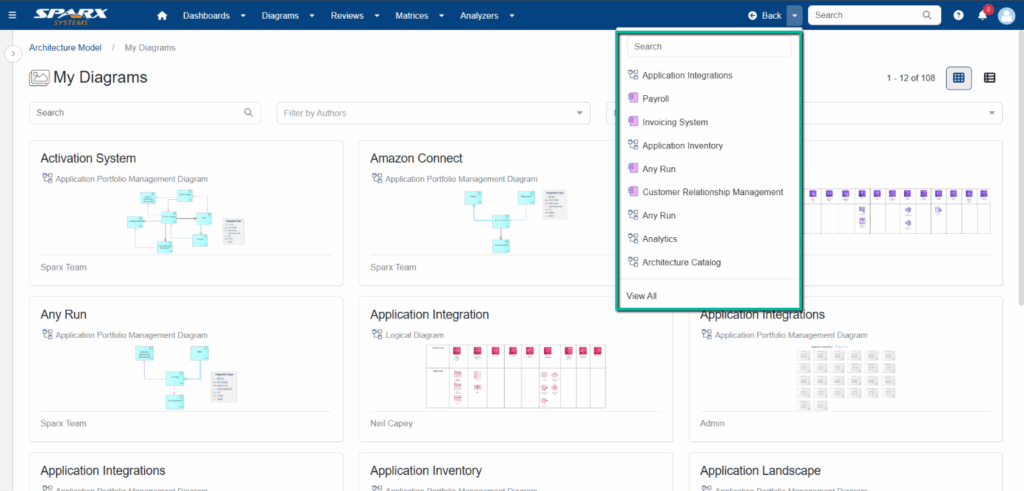
Click View All to open the detailed list where the following details are displayed.
| Field | Description |
|---|---|
| Name | Name of the diagram or artifact, the user most recently visited in Prolaborate |
| Type | Specifies the type whether it is package, diagram or element, the user most recently accessed in Prolaborate |
| Recently Modified | Shows when that particular diagram or artifact was last accessed by the user in Prolaborate |
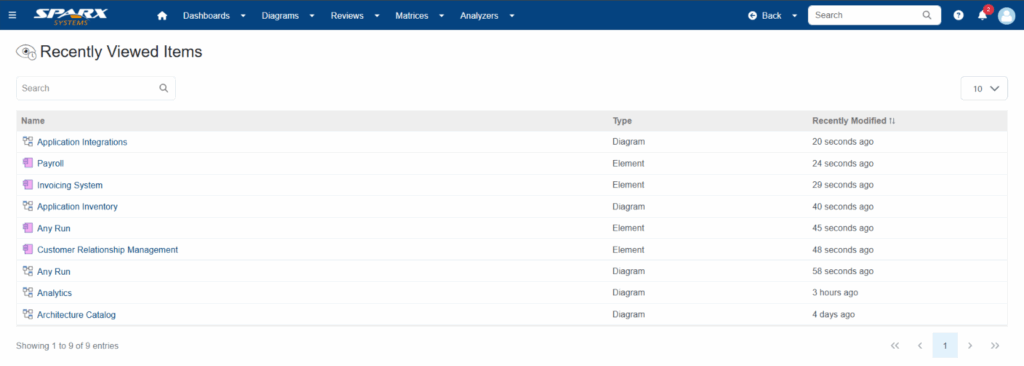
Users can search for a particular recently viewed item using the search field.