SharePoint
  Confluence
  Case Studies
Reports Download Center
Introduction
The Reports Download Center is designed to streamline file downloads while minimizing disruptions to your workflow. Excel reports are generated in the backend, so you don’t need to stay on the download page until the process completes.
Users can download large datasets without interrupting ongoing tasks. Once processing is complete, a notification is sent to inform you that the file is ready for download.
This feature is available from Prolaborate v5.6 and above.
The Download Center is available at both the application level and the repository level.
Note:
- The Download Center displays only the files processed by the logged-in user.
- Downloads initiated by other users are not visible.
Reports Download Center – At Application Level
At the application level, admin can download the Audit Reports and Access Monitoring Reports.
Click Menu > Monitor & Audit Console under Portal Settings and then click on the Downloaded Reports on the left side pane.

Note:
- Only admins can access the Download Center at this level.
- Non-admin users cannot view or download these reports.
Download Audit Reports
If enabled, Audits are displayed in the application interface from Prolaborate version 5.6.
Click Menu > Monitor & Audit Console under Portal Settings. Navigate to Activity Auditing to view the audit information. From there, you can generate and download audit reports.
To learn more about downloading audit reports, click here.
Download Access Monitoring Reports
User login events are captured and displayed on the Access Monitoring page.
Click Menu > Monitor & Audit Console under Portal Settings. Navigate to Access Monitoring to view the audit information. From there, you can generate and download access monitoring reports.
To learn more about downloading access monitoring reports, click here.
Reports Download Center – At Repository Level
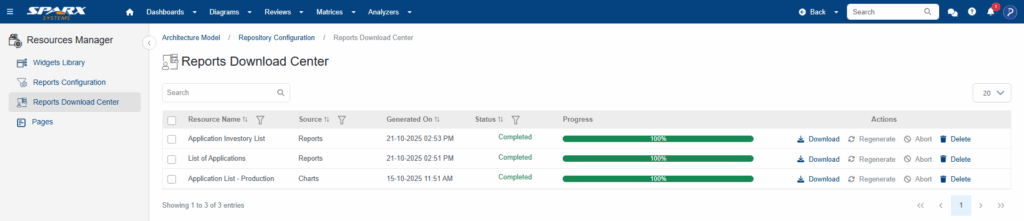
At the repository level, users can download data from charts, reports, and overview pages they have access to within the repository.
Note:
- Download is restricted for anonymous users (public share and open community access)
Download Data from Charts
Users can download chart data by navigating to the detailed view page of a chart and then clicking the Download icon.
To learn more about downloading data from the charts, click here.
Download Data from Reports
Users can download data from a list view report widget by opening the report widget and then clicking on the download icon.
To learn more about downloading data from the report widget, click here.
Get Notified about Downloads
Once a download is initiated, the file is processed in the background. Users will be notified whether the download is successful or failed.
Notifications are delivered in three ways:
In-App Notification
Click the Bell icon on the top right corner. Select the notification to navigate to the download center and download the file.

Push Notification
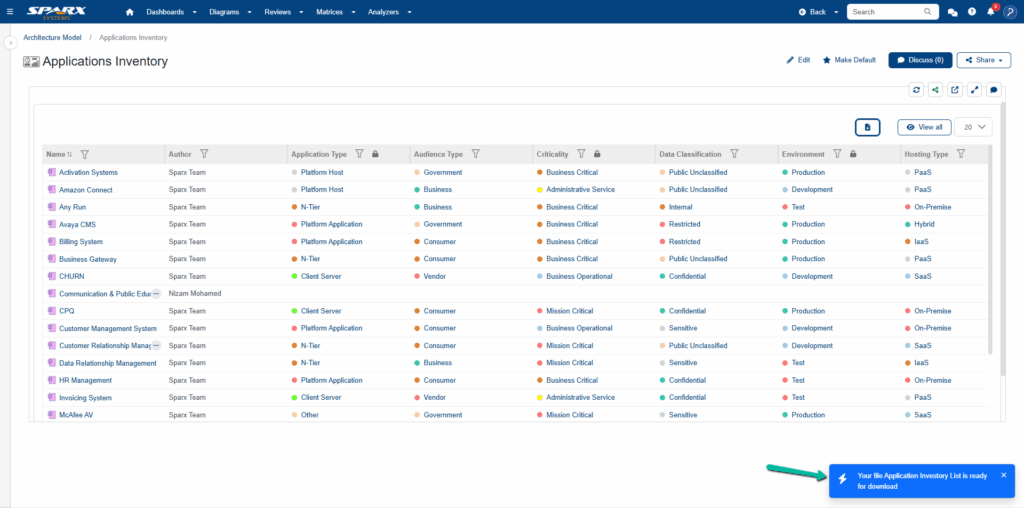
If push notifications are configured, users will see a toaster message. Click the notification to navigate to the download center and download the file.
Email Notification
Users will also receive an email regarding the download status. Click the URL from the email to navigate to the download center.
If you are already logged in, you will be taken directly to the download center and if not, you will be redirected to the login page and upon successful login, then you will be taken to the download center.
Note:
Manage Files in the Reports Download Center
The Reports Download Center allows users to view details and perform actions on processed files.
File Details
Resource Name – Displays the name given when the download was initiated
Source – Indicates where the report was generated from:
- Application level
- Access Reports – Download from Access Monitoring (login/logout events).
- Audit Reports – Download from Activity Audits (user actions in Prolaborate).
- Repository level
- Charts – Download initiated from a chart.
- Reports – Download initiated from a report or children’s table.
Generated On – Displays the date and time when the download was initiated
Progress – Displays the progress of the file generation.
File Status & Actions
| Status | Description | Available Actions |
|---|---|---|
| Completed | The file is successfully generated and ready to download. | Download, Delete |
| In Progress | The file is currently being generated. | Abort |
| Processing | The file is queued and will being soon. | Abort |
| Failed | File generation was unsuccessful due to an error. | Regenerate, Delete |
| Aborted | The download process was canceled by the user. | Regenerate, Delete |
| Pending | The request is waiting to be processed | Abort |
File Actions
Download – Allows you to retrieve the file once its status is Completed.
Regenerate – Retry generating a file if the status is Failed or Aborted.
Abort – Cancel a download process that is In Progress, Processing, or Pending.
Delete – Removes the file from the Download Center.