SharePoint
  Confluence
  Case Studies
Access EA Model using Prolaborate IdP
Introduction
Prolaborate can now act as an Identity Provider (IdP) for EA models. With this new feature, users can access EA model information from Sparx thick client (EA) using their Prolaborate credentials instead of EA model credentials.
Benefits
- Streamlines user administration by eliminating the need for external SSO configurations between EA and Prolaborate.
- Centralize authentication and credential management in Prolaborate for a unified experience.
Note:
- This feature requires the EA administrator to configure OpenID in the EA model using Prolaborate’s Client ID and Client Secret.
Prerequisites
Prolaborate
- Prolaborate version should be version 5.6.0 and above.
- Users should be an administrator in Prolaborate to generate Client ID and Client Secret.
Enterprise Architect
- Model security must be enabled for the model.
- The user should have access to manage the security and user management in the model to configure OpenID.
Configuration
The configuration must be done in both EA model and Prolaborate simultaneously to activate this feature.
Part I – Generate Security Token in Prolaborate
A valid Client ID and Client Secret must be generated in Prolaborate to establish a secure connection between Prolaborate and EA. Follow the steps below.
Click Menu > Integrated Applications – Access Management under Portal Settings.

Click Add Application.

On the Add Application page, do the following.
| Field | Description |
|---|---|
| Name | Enter a suitable name (e.g., ea-client). |
| Application ID | Enter a suitable text as Application ID. It will be used as Client ID. |
| Authorization | Choose Client Credentials and AuthorizationCode as Authorization from the dropdown. |
| Scope | Choose Email, Profile, Groups, Open ID as Scope from the dropdown. |
| API Permission | Not Required |
| Generate Security Token | Toggle On |
| Enhance Security using PKCE | Disable this option |
| Redirect URLs | Enter the default static EA callback URL as the Redirect URL (http://localhost:8888/openid/callback) To OpenID login in Prolaborate when EA Authentication is enabled, the following URL should also be applied. Example: http://localhost:81/RepositoryManagement/OpenId Replace the protocol, domain and port number as required. To learn more about EA Authentication, click here. |
| Post Logout URLs | Leave this field blank |

Click Save to save the configuration. Once saved, the security token will be generated and displayed in the modal window.
Copy the generated Security Token and Application ID. You can also download the token as well.

To regenerate the token, click the Key icon from the listing page.

Part II – Configure OpenID in the EA Model
To configure OpenID in Enterprise Architect, do the following.
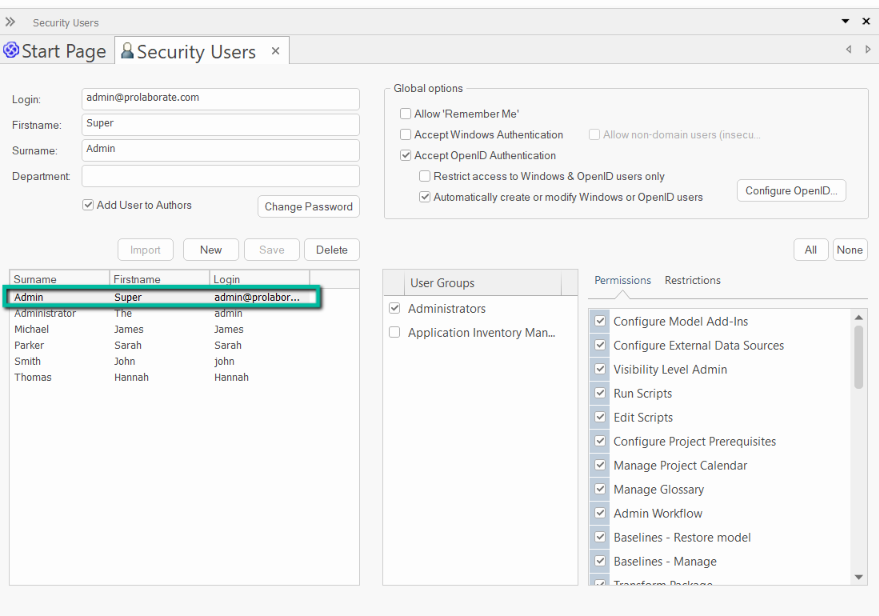
Open the respective model in EA as an admin. Click Settings > Users under Security to open the users tab.
In that, enable the Accept OpenID Authentication. Once enabled, click the Configure OpenID button.

In the modal window, do the following.
| Field | Description |
|---|---|
| OpenID URL | Enter the Prolaborate URL with protocol, domain name and port number.
Example: http://localhost:81 |
| Callback URL | By default, EA generates and displays a static callback URL for the model. The URL should be added on the OpenID server (Prolaborate) as Redirect URL.
Refer to the previous section on where to add the EA callback URL on Prolaborate. |
| Client ID | Enter the valid Client ID generated in the Prolaborate. (Refer to the previous section) |
| Client Secret | Enter the valid Client Secret (Security Token) generated in the Prolaborate. (Refer to the previous section) |
| Scope | Enter the following as scope
openid These values are case-sensitive. |
| Claim to Match to Local User | name (case-sensitive) |
| Claim to Match to Local Group | groups (case-sensitive) |
| Use ID Token for claims | Keep it checked |
| Use User Info for claims | Keep it checked |

Once the details are entered, click OK to save the configuration
Note:
- The same Client ID and Client Secret can be used across different models.
- If the security token is regenerated, the new token should be applied in the OpenID configuration in EA for the configured models.
Part III – Map Prolaborate Group to EA Group
To allow users to login via OpenID and successfully add these users, the Prolaborate user group should be mapped to the respective EA group in the model.
Click Settings > Groups under Security to open the groups tab. The list of user groups created in the respective EA model will be displayed.
Click on a user group. Enter the Prolaborate user group name in the OpenID Group field.

Click Save to update the changes to the user group in EA.
Note:
- Only, users part of the added Prolaborate User Group will be able to login via OpenID in the EA model.
- A Prolaborate user group can only be linked to one local EA group.
- Multiple Prolaborate user group cannot be linked to the same local EA group
Test OpenID Connection
Once the configuration part is completed, you can test the OpenID connection.
In the Configure OpenID modal window, click the Test button once the details are entered.

Click the Login with OpenID button.

When clicked, it launches a web browser and open Prolaborate login page. Enter the valid Prolaborate login credentials and click Login or use Log in with SSO to login to Prolaborate.

In EA, it will display the following user information from Prolaborate for the logged-in user.
- Username – Login information such as email or username
- Name – Name of the user
- User Groups – List of Prolaborate groups that the logged-in user is a part of
It will also display whether the Prolaborate groups are linked to any local EA groups or not.
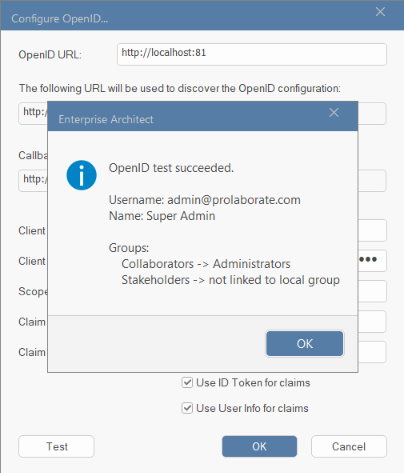
Click OK to save the configuration if not done already.
Note:
- If the Prolaborate user session is already available in the browser, it will be redirected directly to the EA OpenID callback URL given in Prolaborate instead of the login page.
- The logged in user details will be used for test connection.
Add Prolaborate Users automatically to the EA model
In the users’ tab in EA, enable the Automatically create or modify Windows or OpenID users.
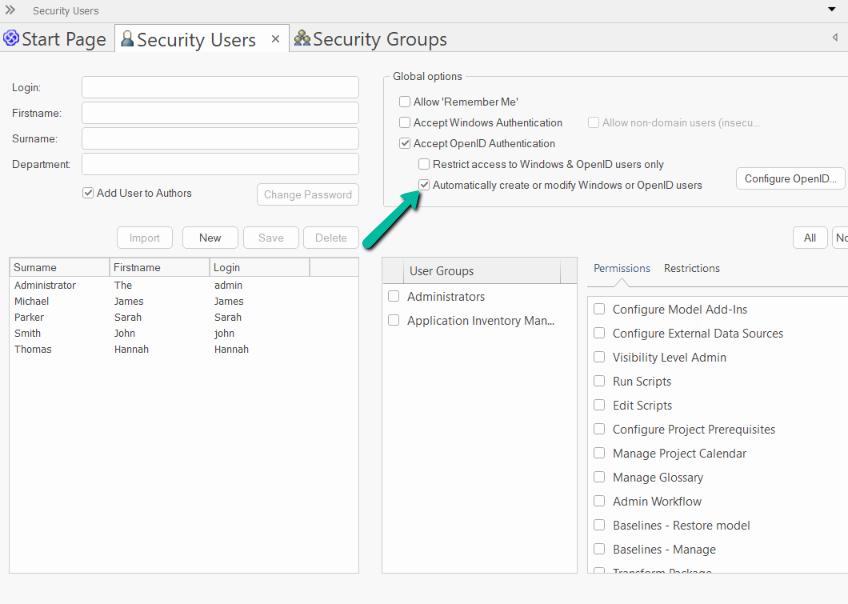
Enabling this option will allow the model to create new users derived from Prolaborate. Users will be assigned local group permissions based on the groups linked to Prolaborate. Existing users will be assigned to or revoked from linked groups when they login.
It is recommended to ensure that a local administrator account is available before enabling this option.
Note:
- A new user that is not in any Prolaborate groups that are linked to model groups, will not be automatically created in the EA model.
- An existing user that is not in any Prolaborate groups that are linked to model groups, will not be logged in to the model using Open ID.
- An existing user’s individual permissions will not be modified automatically, only their group permissions.
- An existing user will not be removed from a group in the model that is not linked to an Prolaborate group.
Once enabled, users using Login with OpenID when opening the model in EA will be authenticated based on their Prolaborate credentials.
If successful, the user will be automatically added to the model in EA.